Inkomba Yezici
Isikhombisa Sezici Esigcwele
Imibhalo eningiliziwe yezici zonke ze-DriveLog — kusuka kutrip yakho yokuqala kuya ekufakweni kwentela.
DriveLog's GPS tracking works by monitoring your device's speed. Tap Start Logging once and leave the app running in the background. When your speed exceeds the threshold (default 5 km/h), a trip starts automatically. When you stop and remain stationary for the auto-stop timeout period, the trip ends and is queued for review.
On Android, DriveLog uses a persistent background service to keep GPS active even when your screen is off. This means your full route is recorded even for long trips. The iOS PWA requires the screen to stay on for tracking — for background tracking on iOS, install the native iOS app when it becomes available.
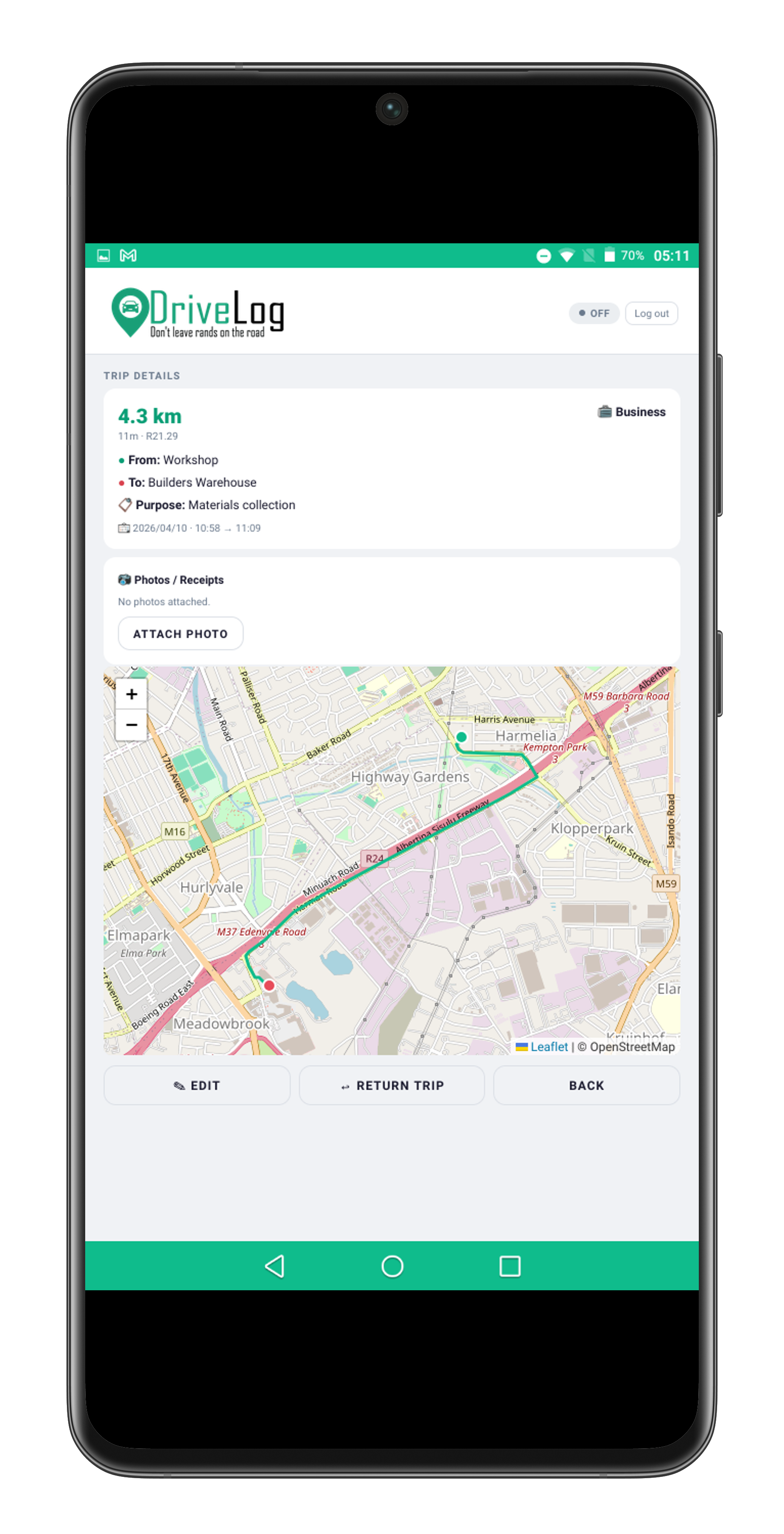
GPS tracks are stored as a path of coordinates that are used to draw the route on the map and calculate accurate distance. If you drive through a tunnel or area with no signal, the app notes the gap and continues when GPS is re-acquired — the distance is estimated for the gap period.
- Start Logging once — auto-start and auto-stop are fully automatic from that point
- Speed threshold is adjustable in Settings → GPS & Detection (default 5 km/h)
- Auto-stop timeout is configurable: 2, 5, or 10 minutes of no movement
- Minimum trip distance filter prevents very short accidental trips (default 0.3 km)
- Background tracking on Android works with the screen off; PWA requires screen on
- GPS activates only when motion is detected — battery impact is minimised
Tip: If you drive to multiple stops on one trip (e.g. three client sites), DriveLog records all of this as a single trip. You can split or manually add trips in the review screen if needed.
Manual entry is for trips you forgot to monitor, or trips where GPS was unavailable. Tap the + button on the Trips tab to open the manual entry form. You can enter trips going back as far as you need — there is no cut-off.
The required fields are: date, start location (text or odometer), end location, distance, and trip type (Business or Personal). Purpose is optional but strongly recommended for SARS — a logbook with purposes like "Client meeting — ABC Corp" is far easier to defend in an audit than one with blank purpose fields.
Odometer entry is supported for users who prefer odometer-based distance over GPS distance. Enter your odometer reading at the start and end of the trip and DriveLog calculates the distance automatically. This is useful if your GPS distance differs significantly from your odometer (common for routes with poor signal).
- Required: date, start and end location names, distance or odometer readings, trip type
- Optional but recommended: purpose, notes
- Manual trips are labelled "Manual" in the logbook PDF — this is normal and SARS-acceptable
- SARS tip: keep supporting evidence for manual trips (calendar entries, emails, receipts)
- You can back-fill an entire tax year manually if you are switching from a paper logbook
Note: For SARS, a manual trip is valid as long as the information is accurate and you have supporting evidence. DriveLog cannot verify manual entries — accuracy is your responsibility.
Every trip needs to be classified as Business or Personal before it appears in your logbook. SARS requires that your logbook shows all travel — not just business trips. The ratio of business km to total km is used to calculate your deductible percentage.
The review screen shows unreviewed trips as swipeable cards. Swipe right to mark Business, swipe left to mark Personal, or tap to expand and add a purpose. DriveLog learns from your choices — routes you classify the same way three or more times get a suggestion automatically next time.
You can edit any trip by tapping it in the trip list. From the edit screen you can change the trip type, purpose, distance, start and end locations, and notes. Edited trips are synced to the server and flagged as reviewed.
- Unreviewed trips appear in the review queue on the home screen
- Swipe right = Business, swipe left = Personal (on touch devices)
- Tap any trip to open the full edit form
- Trip purpose is free text — common purposes are also available as chips for quick entry
- SARS requires purpose for business trips — "Client visit", "Site inspection", "Head office meeting" etc.
- Personal trips need no purpose, but must still be logged
SARS note: Home-to-office commuting is not deductible under Section 8(1)(b) — it counts as personal travel. DriveLog automatically detects commute routes if you have Learned Locations for your Home and Office.
Bluetooth detection lets DriveLog know when you get into your car, so it can prompt you to start logging without you needing to remember. When your phone connects to a known Bluetooth device, DriveLog shows a notification asking if you want to start tracking — or starts silently if you prefer.
Method 1 — Car Bluetooth: Go to Settings → Tracking → Bluetooth Car Detection and enable it. Connect your phone to your car Bluetooth first, then tap Detect my car. The app will request the Nearby Devices permission — this is used only to read your Bluetooth device names, nothing is recorded. Select your car from the device list, and setup is complete. On iPhone, iOS does not allow apps to scan Bluetooth devices directly; type your car's Bluetooth name manually instead (find it under Settings → Bluetooth on your iPhone). Case-insensitive partial matching is used — "Hyundai" will match "HYUNDAI ix35 Hands-Free".
Method 2 — Bluetooth Dongle (no car Bluetooth required): If your car doesn't have built-in Bluetooth, plug a Bluetooth dongle, an old pair of headphones, or a small Bluetooth speaker into a USB car charger and leave it there permanently. When the car starts, the USB charger powers the device and your phone auto-connects. DriveLog detects the connection and starts tracking automatically — no extra steps while driving. Then follow the same Detect / name steps above to register the device. Use a device dedicated to your car; one you also carry home may trigger false trips.
- Works on Android via the Capacitor native app or the PWA (Android only)
- Compatible with car Bluetooth stereos and Bluetooth dongles, headphones, or speakers in a USB charger
- iPhone: manual device name entry required — iOS does not allow Bluetooth scanning in web apps
- Nearby Devices permission is used only to read device names — no audio is ever recorded
- You can enable "Auto-start without prompt" if you want trips to start silently on connection
- Connection history is logged so you can see when the car was last detected
Troubleshooting: If Bluetooth detection stops working, check that DriveLog has the Nearby Devices (Bluetooth) permission in your phone settings, and that Bluetooth is enabled. Re-running the detection setup usually resolves issues after phone OS updates.
Not working when the app is closed? Some phone manufacturers (especially Samsung) aggressively kill background services to save battery. DriveLog runs a foreground service to detect your car even when the app is closed, but your phone may terminate it. To fix this:
- Samsung (One UI): Settings → Apps → DriveLog → Battery → set to Unrestricted
- Samsung: Settings → Battery → Background usage limits → remove DriveLog from Sleeping apps and Deep sleeping apps
- Other Android: Settings → Apps → DriveLog → Battery → Don’t optimise (or Unrestricted)
- Xiaomi/MIUI: Settings → Apps → DriveLog → Battery Saver → No restrictions. Also enable Autostart
- Huawei/EMUI: Settings → Apps → DriveLog → Battery → enable Launch manually
Without these settings, your phone may kill DriveLog’s background service within minutes of closing the app.
Business Hours auto-classification automatically marks trips as Business if they start within your configured working hours and days. This reduces the number of trips you need to manually review each week — most of your weekday trips are likely business trips anyway.
To set it up: go to Settings → Tracking → Business Hours, enable the toggle, set your start and end times, and select your working days. Trips that start within those hours on those days are automatically classified as Business and marked as reviewed. You can still override any trip individually at any time.
Trips that start outside your business hours (evenings, weekends) are left unreviewed or automatically classified as Personal depending on your settings. You will still see them in the review queue so you can reclassify any exceptions — like working late or a weekend site visit.
- Only the trip start time is used for classification — not the end time
- Business hours classification happens on-device as soon as the trip ends
- Auto-classified trips are still editable at any time
- For shift workers: you can set overnight hours (e.g. 22:00 to 06:00)
- Business Hours does not override Learned Location or Route Rule defaults — location rules take priority
Tip: If you have irregular hours, leave Business Hours off and use Learned Locations with default trip types instead — the location-based approach is more precise for variable schedules.
DriveLog learns your driving patterns as you go and classifies repeat trips automatically — reducing the daily review queue to only new or unusual journeys. Auto-classification uses three layers that work together: Learned Locations, Route Rules, and Catcher Geofences.
Learned Locations are created automatically whenever you rename a trip's start or end address during review. DriveLog saves the GPS coordinates and the name you gave — the next time a trip starts or ends at those coordinates, the location name is pre-filled. You can also set a default trip type and purpose for any learned location, so that trips ending there are classified and purposed without any extra taps. Learned locations are managed in Settings → Tracking → Learned Locations.
Route Rules go one step further — they match a specific start location AND end location and apply a fixed classification and purpose every time that route is detected. Create a rule by tapping the Make rule checkbox when editing any trip. Once saved, every future trip on that same route is auto-classified and marked as reviewed, so it never appears in the review queue. Route rules are listed and managed in Settings → Tracking → Route Rules.
Catcher Geofences handle the case where a trip ends near — but not exactly at — a known location. When the end point falls within the catcher radius (a wider circle around each learned location, up to 600m), DriveLog shows a "Did you mean...?" prompt with nearby known locations as options. Tap one to apply that location's name and default classification to the trip, or choose "New place" to name it from scratch (which also creates a new learned location for next time).
- Learned Locations are created automatically when you rename a trip address — no manual setup required
- Set a default trip type and purpose on any learned location to auto-classify arrivals there
- Route Rules match start + end together — more specific than a single location default
- Create a route rule in one tap from the trip edit screen using the "Make rule" checkbox
- Catcher Geofences prompt you when you park slightly off the usual spot (e.g. different bay at the same site)
- Auto-classified trips are still fully editable — tap any trip to override the classification
- Business Hours auto-classification also applies; Route Rules and Learned Locations take priority
Tip: The more trips you review and rename, the smarter auto-classification becomes. After a few weeks of normal use, most trips will classify themselves — your daily review queue typically shrinks to only new destinations.
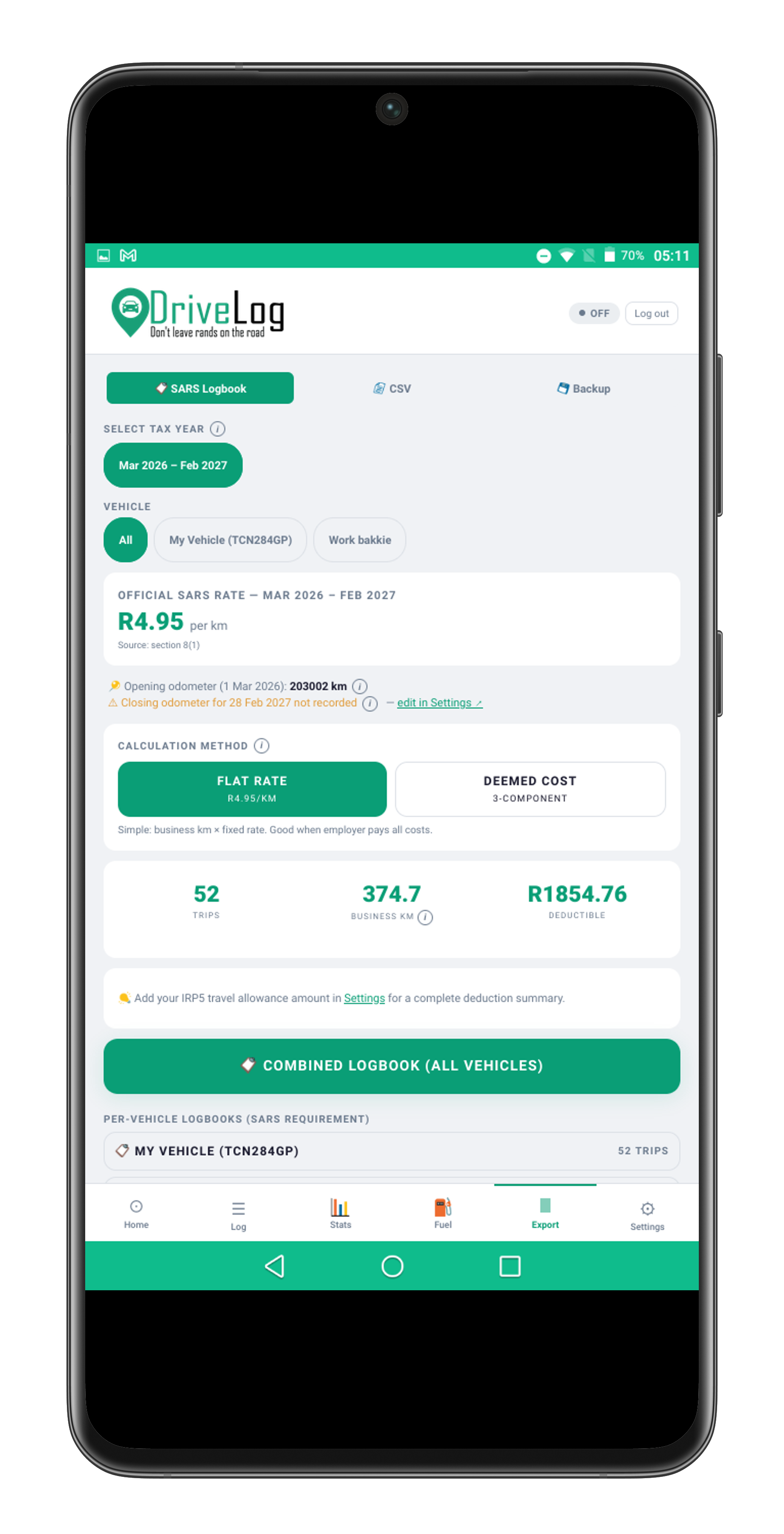
SARS requires the actual odometer reading on 1 March (the opening reading) and 28/29 February (the closing reading) of each tax year. The difference between these readings is the total km travelled in the year — your logbook entries must account for all of that distance. DriveLog uses these readings in your logbook PDF and for the deemed cost calculation.
Set your opening and closing odometer in Settings → Vehicle → Tax Year Setup. You will need a separate entry per vehicle for each tax year you are claiming. If you use multiple vehicles, set the odometer for each one individually.
For the rate method, you have two choices. Flat rate multiplies your business km by the official SARS rate per km (currently R4.95/km for the 2026/27 tax year). Deemed cost is more complex — it uses three components (fixed cost, fuel CPM, maintenance CPM) based on your vehicle's retail value, and is often higher for newer vehicles. DriveLog calculates both and shows the comparison. The rate method you choose appears in the logbook PDF and is applied to all calculations.
- Opening odometer: reading on 1 March of the tax year (e.g. 1 March 2025)
- Closing odometer: reading on 28 February of the following year (e.g. 28 February 2026)
- Tax year runs from 1 March to 28/29 February — not the calendar year
- Vehicle ownership type: Private (you own it), Company (employer-provided)
- Travel allowance amount: the rand amount your employer pays you (IRP5 code 3701, 3702, or 3703)
- Deemed cost requires your vehicle's retail value — check your original purchase price or Autotrader
SARS note: You must keep your opening odometer record safe. SARS can request it during an audit. A photo of your dashboard on 1 March is acceptable supporting evidence.
The SARS Logbook PDF is the main deliverable of DriveLog — a legally compliant logbook document that meets all SARS requirements under Interpretation Note 14. It is included with the Pro plan. Free plan users can record and review trips but cannot generate the PDF.
To generate the PDF: go to the SARS tab, select the tax year and vehicle, choose your tax scenario (Section 8, 7th Schedule, or Section 11(a)), and tap Export PDF. The PDF is generated server-side and downloaded to your device. It includes all reviewed trips for the selected year, a summary table, opening and closing odometer, the calculation (flat rate or deemed cost), and a taxpayer declaration section.
Export at the end of each tax year (after 28 February) and save a copy in a secure location. SARS can request logbook records for up to 5 years. DriveLog keeps your data for 5 years on Pro — we recommend downloading a backup copy annually for your own records.
- Requires Pro plan — free plan shows a preview but does not allow full download
- Three formats: Section 8(1)(b) travel allowance, 7th Schedule company car, Section 11(a) self-employed
- PDF includes all trips flagged as reviewed for the selected tax year and vehicle
- Flat rate and deemed cost calculations are both shown if you have entered vehicle value
- You can export for any past tax year where you have data
- Pro tip: export in late February before the tax year closes, then again in March for the final version
Reminder: The tax year runs 1 March to 28/29 February. Do not wait until August (ITR12 deadline) to discover your logbook has gaps — review trips weekly and export in March while the details are fresh.
If you use accounting software like Xero or Sage One, DriveLog can export your trip data as a CSV in a format compatible with those platforms. This is useful for sole traders and commission earners who need to record vehicle expenses in their books as well as their SARS logbook.
The CSV export is found in the SARS tab. Select the month or date range, choose the export format (Generic CSV, Xero, or Sage), and tap Export. The file downloads to your device and can be opened in Excel or imported directly into your accounting software.
To import into Xero: go to Accounting → Import, select CSV, and map the columns as prompted. To import into Sage One: go to Reports → Import and follow the on-screen wizard. Both platforms accept CSV imports with date, description, and amount columns.
- Export formats: Generic CSV, Xero-compatible, Sage One-compatible
- CSV includes: date, start location, end location, distance, trip type, purpose, calculated cost
- Cost is calculated using the rate method you have selected (flat or deemed)
- Export per month, per quarter, or per tax year
- Your accountant can also use the Accountant Share Link feature to access exports directly
Xero tip: Map the "Purpose" column to the Xero "Description" field and the "Cost" column to "Amount" for a clean import. Your accountant can set up a recurring import template to automate this monthly.
DriveLog is designed to work fully offline. Trip recording, GPS tracking, and trip review all work without an internet connection. This is essential for areas with poor signal — mines, rural routes, mountain passes — where you still need a complete logbook.
Trips recorded offline are stored locally in your browser's IndexedDB (or the native app's local storage). When you are back online, DriveLog automatically syncs pending trips to the server. The sync happens in the background — you will see the cloud icon in the app change from orange (pending) to green (synced).
The trip queue shows all trips that have not yet been synced. If a sync fails (e.g. a server error), the trip stays in the queue and retries automatically. You can also trigger a manual sync at any time from Settings → Sync & Backup.
- GPS recording, trip review, and manual entry all work offline
- PDF export requires an internet connection (generated server-side)
- Settings changes sync when you are back online
- The orange cloud icon means there are unsynced trips — do not clear browser data while orange
- Install DriveLog on your home screen (PWA) for full offline capability and faster load times
- The native Android app stores data in app storage — does not depend on browser storage limits
Important: Do not clear your browser cache or app data if there are unsynced trips (orange cloud icon). Wait until sync is complete (green cloud) before clearing storage.
The Fleet plan is designed for business owners who need to track multiple drivers in a single account. As a fleet owner, you can invite drivers, view their trips, and generate per-driver or combined logbook exports. Each driver has their own login and sees only their own trips — you see everyone's trips from your fleet dashboard.
To invite a driver: go to Settings → Fleet and tap Invite Driver. Enter the driver's email address. They will receive an invitation email with a link to create their account. Once they accept, their trips appear in your fleet view. You can have up to 10 drivers on the Fleet plan.
Per-driver exports are available from the fleet dashboard. Select a driver, choose the tax year, and tap Export. Each driver's logbook PDF uses their vehicle details and their trips. Fleet owners can also download a combined CSV showing all driver trips for accounting purposes.
- Fleet plan supports up to 10 drivers
- Each driver has a separate login — drivers cannot see each other's trips
- Fleet owner can view all driver trips from the fleet dashboard
- Per-driver PDF and CSV exports available
- Fleet owner is billed once — driver accounts are included in the fleet subscription
- Drivers can use all DriveLog features (GPS tracking, Bluetooth, manual entry)
Note: If your drivers use company vehicles, their logbooks fall under the 7th Schedule fringe benefit rules. Each driver should set their vehicle type to "Company car" in their tax year settings.
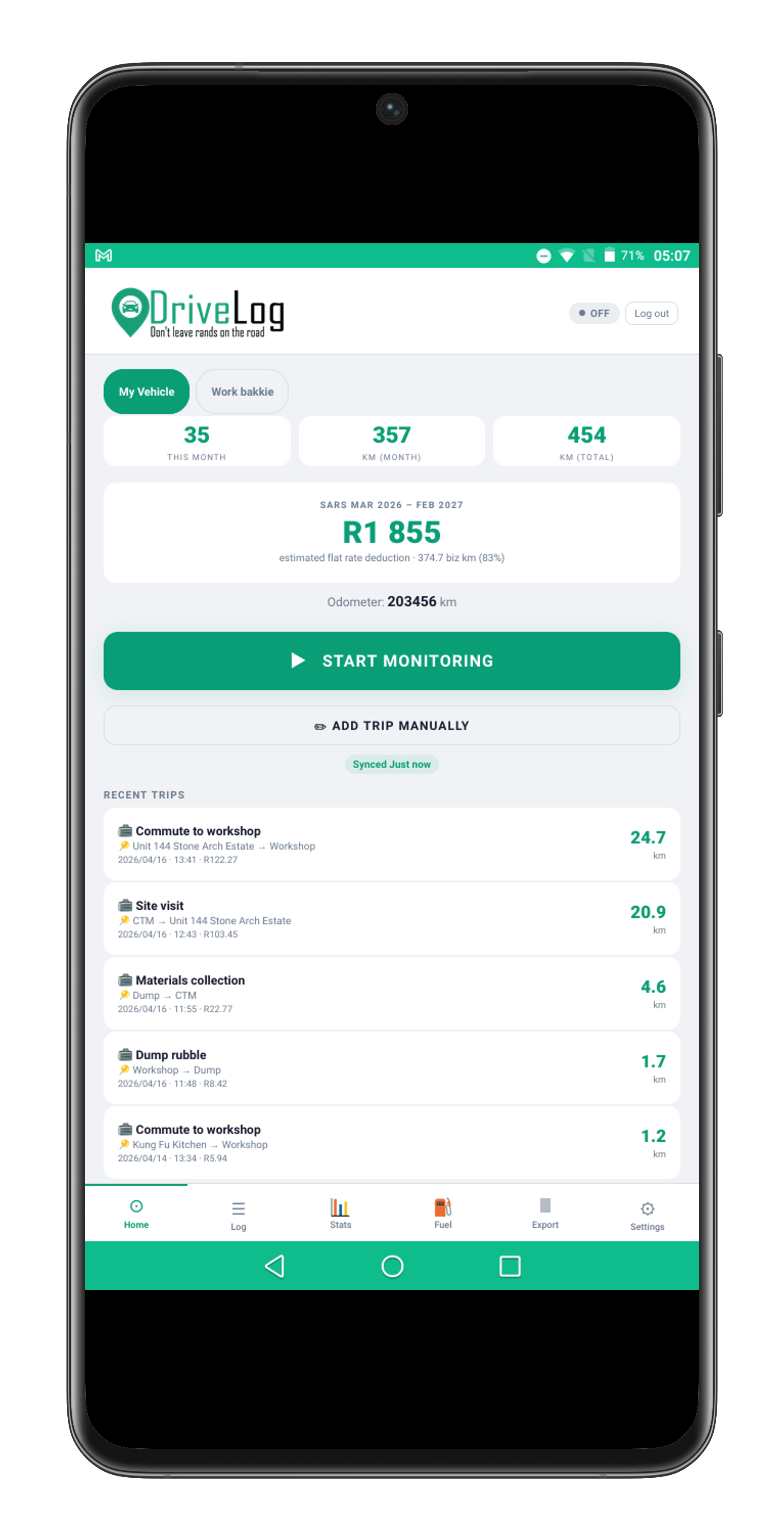
DriveLog supports multiple vehicles per account (up to 3 on Pro, up to 10 on Fleet). Each vehicle has its own logbook, odometer history, and tax year settings. If you drive different vehicles during the year — for example a personal car and a company bakkie — you can log trips against each vehicle separately.
To add a vehicle: go to Settings → Vehicles and tap Add Vehicle. Enter the label (e.g. "Ford Ranger"), registration number, make and model, and opening odometer. Set it as the default vehicle if it is the one you drive most often. You can switch the active vehicle from the home screen before starting a trip.
Odometer calibration lets you correct accumulated distance if your GPS distance diverges from your actual odometer. This is common for vehicles with large tyres, or for routes with poor GPS signal. Set the calibration factor in Settings → Vehicles to multiply GPS distances by a correction factor.
- Free plan: 1 vehicle. Lite: 1. Pro: up to 3. Fleet: up to 10
- Each vehicle has its own logbook, odometer, and SARS settings
- Switch vehicles from the home screen before starting a trip
- Vehicle value is needed for deemed cost calculation — see your purchase invoice or Autotrader
- Deleted vehicles are soft-deleted — their trip history is retained
- Closing odometer should be set on 28/29 February for the SARS logbook
Tip: Give each vehicle a clear label that includes the year and make, e.g. "2022 Toyota Hilux". This makes it easy to identify the correct vehicle in exports, especially if you have had multiple vehicles over the years.
The Monthly Email Summary sends you (and optionally your accountant) a summary of your trip activity on the 1st of each month. The summary includes total km, business km, personal km, number of trips, and the calculated deduction value for the previous month. It is a useful way to keep track of your logbook without opening the app.
To enable it: go to Settings → Account → Email Preferences and enable the Monthly Email Summary toggle. To also send a copy to your accountant, enter their email address in the CC Accountant field. Your accountant receives the same summary — useful for quarterly review meetings and end-of-year tax preparation.
The monthly email uses the template set by your admin and shows your vehicle, the tax year, and a breakdown of km by trip type. Business km and the calculated deduction amount are highlighted. The email is sent on the 1st of each month for the previous month's data.
- Sent on the 1st of each month for the previous month
- Includes: total km, business km, personal km, trip count, estimated deduction
- CC your accountant so they receive automatic monthly updates
- You can disable the summary at any time without affecting your logbook
- Pro plan required for the accountant CC feature
Accountant tip: If you add your accountant's email, they receive the monthly summary automatically — you do not need to send them anything manually. At year-end, they will already have 12 months of monthly summaries to work from.
The Trip Gap Report analyses your logbook and shows you days where you have no trips recorded. This is a powerful audit tool — gaps in your logbook often represent trips you forgot to log. Each unclaimed business trip is a deduction you are leaving on the table.
Access the Gap Report from the SARS tab. Select the tax year and vehicle and tap Generate Gap Report. The report shows a calendar view with days highlighted in amber or red if there are no trips recorded on days you typically drive (based on your Business Hours or day-of-week patterns). You can tap any highlighted day to open the manual entry form pre-filled with that date.
Use the Gap Report in January and February each year to catch any missed trips before the tax year closes on 28 February. A logbook with unexplained gaps (long stretches of zero km) is more likely to attract SARS scrutiny than one with continuous records. The Gap Report helps you close those gaps before they become a problem.
- Shows days with no recorded trips across the selected tax year
- Highlights days where you typically drive based on your pattern
- Tap any gap day to open manual entry for that date
- Most useful in January and February before the tax year closes
- Review with your accountant at mid-year to catch gaps early
- Gaps in logbooks are a common SARS audit trigger — a complete record is your best protection
SARS tip: If SARS requests your logbook, they look for two things: complete dates and plausible distances. The Gap Report helps with completeness. Manual entries are acceptable — just make sure the distances are consistent with where you actually drove.
DriveLog automatically calculates the maximum and average speed for every GPS-tracked trip. Speed data is derived from consecutive waypoints in the trip path — no additional hardware or setup is required. Each waypoint includes a timestamp, and the speed between consecutive points is calculated using GPS distance and elapsed time.
On the trip detail screen, max speed and average speed are displayed below the trip photos. If the maximum speed exceeds 120 km/h, the value is highlighted in red as a visual alert. Speed data is only available for GPS-tracked trips — manual trips do not have speed information since they have no GPS path.
For Fleet plan users, the driver detail view includes a Driver Behaviour section. This section provides an at-a-glance speed rating (green for under 100 km/h, amber for 100–120 km/h, red for over 120 km/h), the number of trips where the driver exceeded 120 km/h, and a list of the driver's top 5 fastest trips. Fleet managers can use this data to identify risky driving patterns and take appropriate action.
- Max and average speed are calculated automatically from GPS waypoints
- Speed display appears on the trip detail screen when data is available
- Max speed over 120 km/h is highlighted in red
- GPS noise is filtered: segments under 3 seconds or over 250 km/h are excluded
- Fleet plan: Driver Behaviour section with speed rating, trip count over 120, and top 5 fastest
- Speed data is stored server-side and syncs across devices
Note: GPS-derived speed is an approximation based on distance between position samples. Actual vehicle speed may differ slightly due to GPS accuracy, signal conditions, and sampling frequency. Speed data is intended for fleet monitoring and awareness — not as a legal speed measurement.
DriveLog can record video while you drive, with clips automatically linked to your trips. Recording starts and stops with trip tracking — no extra steps needed.
Getting started: Open Settings → Dashcam and enable recording. Grant camera permission when prompted. Choose your preferred video quality — higher quality uses more storage.
Viewing clips: After a trip, tap it in the log to see associated dashcam clips. You can also browse all clips from the Dashcam tab. Each clip shows the date, duration, file size, and resolution.
- Auto-start and auto-stop recording tied to trip tracking
- Lock important clips to prevent accidental deletion
- Incident detection flags sudden events like hard braking or collisions
- Storage usage display shows how much space clips are using
- Available on Pro, Fleet, and Enterprise plans only
- Requires the Android or iOS native app — not available in the web browser
Tip: Lock any clips you may need for insurance claims or disputes. Unlocked clips may be deleted when storage runs low.
Activity Recognition lets DriveLog detect when you start driving and automatically begin trip tracking — without you needing to tap anything. When you stop driving, the trip ends automatically too.
How to enable: Go to Settings → Tracking → Activity Recognition and toggle it on. You can also enable "Auto-start" to begin tracking silently without a confirmation prompt.
How it works: On Android, DriveLog uses the device's ActivityRecognition API to detect "in vehicle" activity. On iOS, it uses CoreMotion (accelerometer-based motion detection). Both methods are battery-efficient and run in the background.
- Android: detects driving via the ActivityRecognition API
- iOS: detects motion via CoreMotion (accelerometer)
- Automatic trip start and stop — no manual tap needed
- Optional auto-start mode for fully hands-free operation
- Battery-efficient — sensors only activate when motion is detected
- Not available on the web app — requires the Android or iOS native app
Note: Activity Recognition and Bluetooth Car Detection can work together. If both are enabled, whichever detects driving first will start the trip.
Not working when the app is closed? Some phone manufacturers aggressively kill background services. DriveLog runs a foreground service to keep Activity Recognition alive, but your phone may terminate it. See the
Bluetooth section above for battery optimisation settings per manufacturer (Samsung, Xiaomi, Huawei, etc.).
The AI SARS Advisor is a built-in chat feature that answers your questions about SARS travel deductions, Interpretation Note 14, deemed cost calculations, and more. It has access to your actual logbook data, so answers are personalised to your situation.
How to use: Tap the chat icon on the home screen or go to Settings → AI Advisor. Type your question in plain English, Afrikaans, or isiZulu and the advisor responds instantly.
- Answers questions about flat rate vs deemed cost, Section 8(1)(b), and IN 14 rules
- Context-aware — knows your tax year, vehicles, and trip data
- Available on Pro plans only
- Rate limited to 20 requests per 5 minutes
- Your messages are capped at 1,000 characters and stripped of HTML for security
Important: The AI Advisor provides general guidance based on published SARS rules. It is not a substitute for professional tax advice. Always confirm deduction claims with a registered tax practitioner.
Keep track of your vehicle's service history and upcoming maintenance. DriveLog reminds you when a service is due based on date or odometer reading — so you never miss an oil change or tyre rotation.
Adding a service: Go to the vehicle's detail page and tap Add Service. Choose the service type, enter the date and odometer reading, and optionally add the cost and notes.
- Service types: Oil Change, Tyres, Brakes, Full Service, Battery, and Other
- Set next-due reminders by date or odometer (e.g., every 15,000 km or every 12 months)
- Overdue services shown in red; due-soon services shown in amber
- Full service history per vehicle with date, odometer, cost, and notes
- Edit or delete any service record
Tip: Keeping accurate service records helps with vehicle resale value and supports SARS deemed cost claims where maintenance costs are a factor.
Generate a secure, read-only link to your logbook and share it with your tax professional. They can view your trips, distances, and deduction summary without needing a DriveLog account.
How to share: Go to the SARS tab and tap Share with Accountant. A unique link is generated that you can copy and send via email or WhatsApp. You can create up to 5 share links.
- Read-only access — your accountant can view but not edit your data
- Secured with a SHA-256 hashed token
- Links expire after 90 days for security
- Maximum 5 active share links per account
- Revoke any link instantly from the SARS tab
Privacy: Share links only expose trip summary data for the selected tax year. GPS paths, photos, and personal settings are never included.